Table of contents
How File Slots Make Third-Party File Uploads Actually Work
I built an agent that lets me file expenses when I travel. Simple enough — it requires an amount, a category, and notes. But here’s the thing: most expenses need an attachment. A receipt. An invoice. Proof that I actually spent the money.
My plugin couldn’t handle that. So every time I had an expense with an attachment, I’d have to log into our travel management platform separately, find the expense, and upload the file manually. A couple clicks each time. However, when you do this for 10+ expenses a week, it quickly gets repetitive and time-consuming.
File Slots change this. Slots describe the inputs that your agent collects from a user to proceed with a task. File slots make it possible for your AI agents to collect files like expense receipts or invoice PDFs. I added one slot, mapped it in the new File tab, tested once, and shipped. No more context switching.
But here’s what I want to unpack: how it actually works, what the limitations are, and why you should care about both.
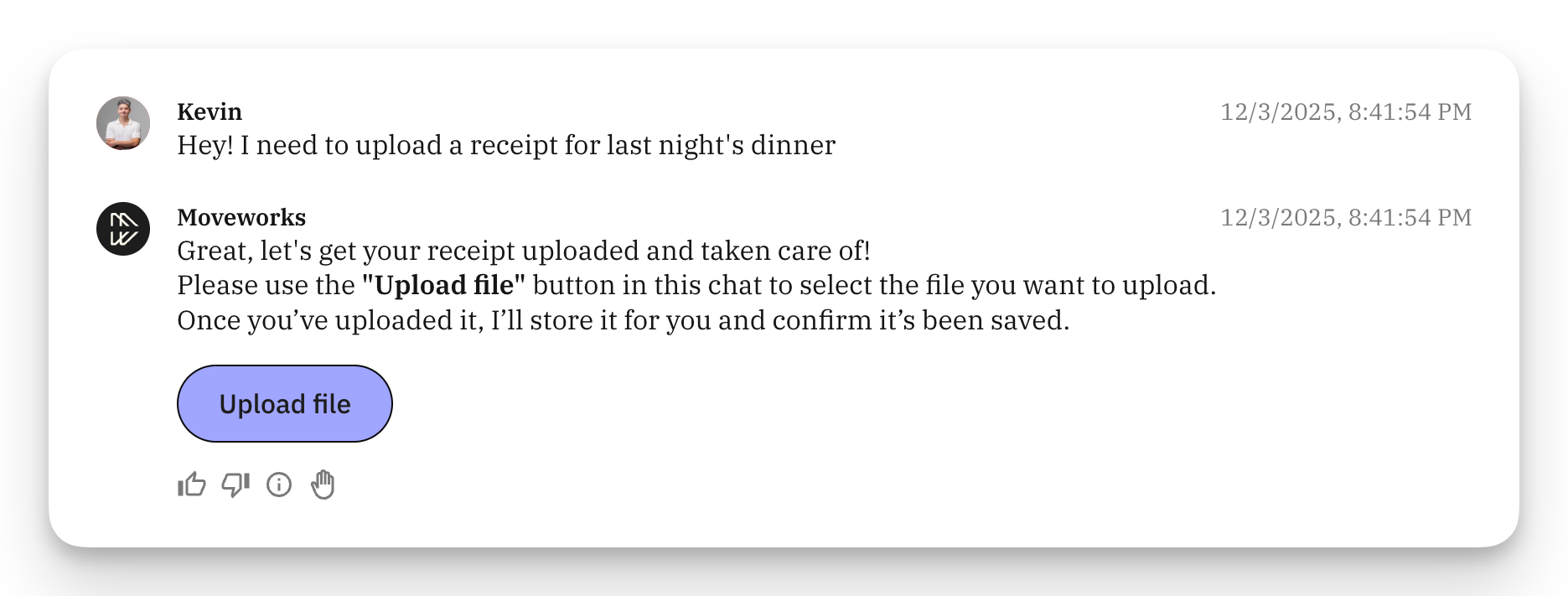
The File Upload Blueprint
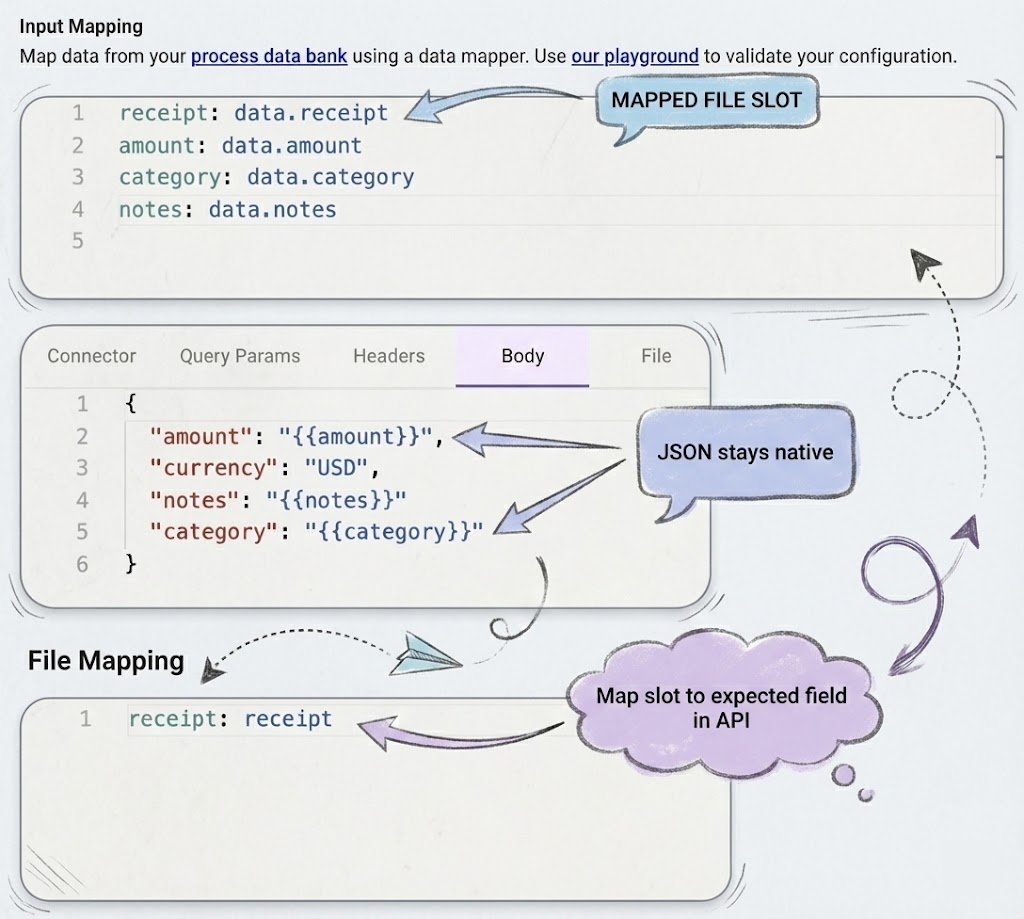
Codifying a conversation process’ slot — my plugin's slots look like this. Nothing fancy, just enough to collect the basics plus the file:
slots:
receipt:
type: File
description: "The receipt the user needs to upload to their expense"
amount:
type: Number
description: "The amount of the expense"
category:
type: String
description: "Expense Category"
notes:
type String
description: "Notes about the expense"
Your API expects specific fields. You map them:
{

    "amount": "{{amount}}",

    "currency": "USD",

    "notes": "{{notes}}"

    "category": "{{category}}"

}
And in the new File tab, we map the attachment passed from the Conversation Process. In this case, the field name my API expects is receipt
receipt: receiptSteady. Reliable
Under the Hood: From Upload to Multipart
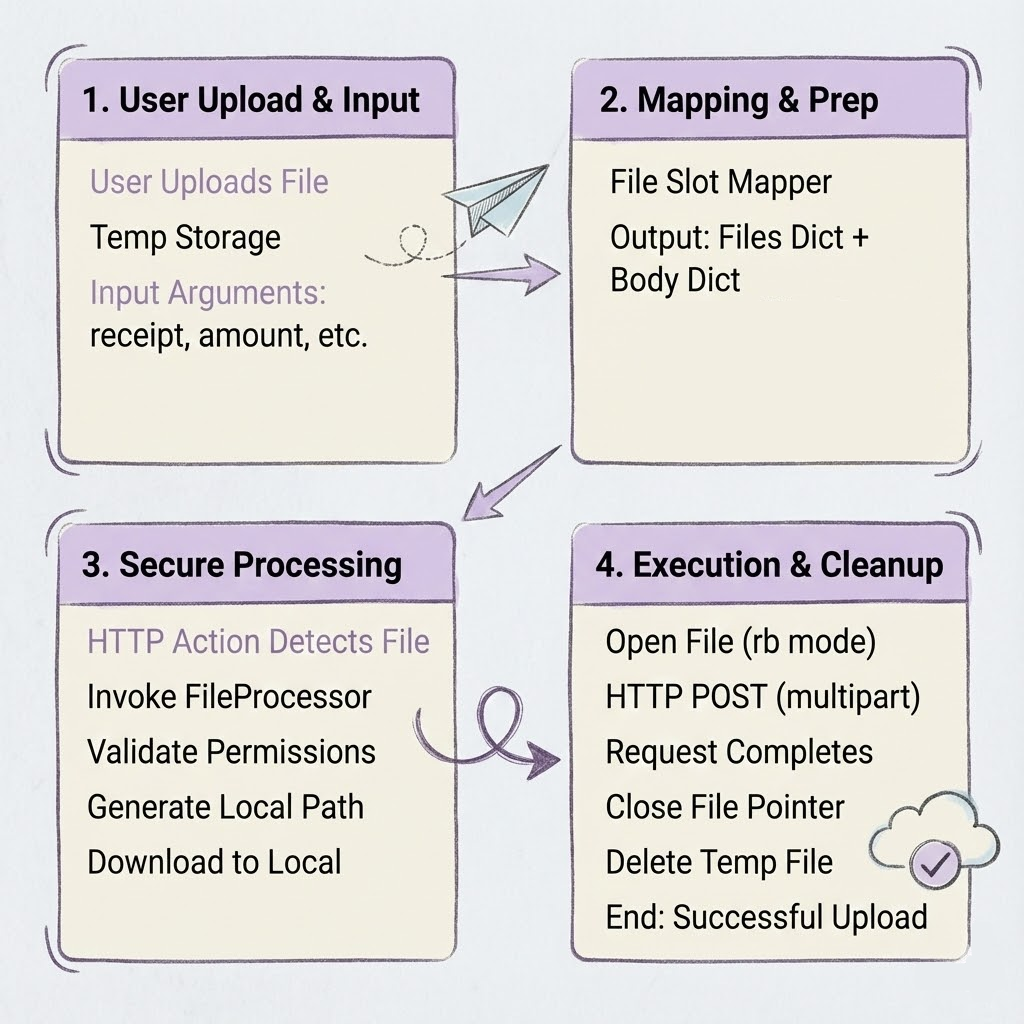
When a user uploads a file, the system creates a File object. This lives in temporary storage initially. The File Slot mapper then takes this object and determines what needs to go where: the files go in the files dictionary, and everything else goes in the request body.
Input arguments:

    receipt: File { file_name: "uber_receipt_2025.pdf", ... }

    amount: 30.00

    category: "Travel"

    notes: "Airport ride"File mapper output:

    files:{

        "receipt":

            File { file_name: "uber_receipt_2025.pdf",

            location: "tmp/abc123def456"

        }

    }    body: {

        "amount": "30.00",

         "currency": "USD",

        "notes": "Airport ride",

        "category": "Travel"

    }
Here’s where it gets clever. The HTTP action spots the File tab mapping and hands off to a FileProcessor, a context manager that orchestrates the download and cleanup. No loading the whole file into memory; we stream it.
FileProcessor {

        attachment_handler: downloads files from temp storage

        tmpdir: /tmp/agent-studio-uploads/ # this is an example not an accurate representation         1. validate_user_permissions(file.location, user_id)

        2. generate_unique_path(file.file_name, tmpdir)

        3. download(file.location, local_path)

        4. update(file.location, "to_local_copy_path") }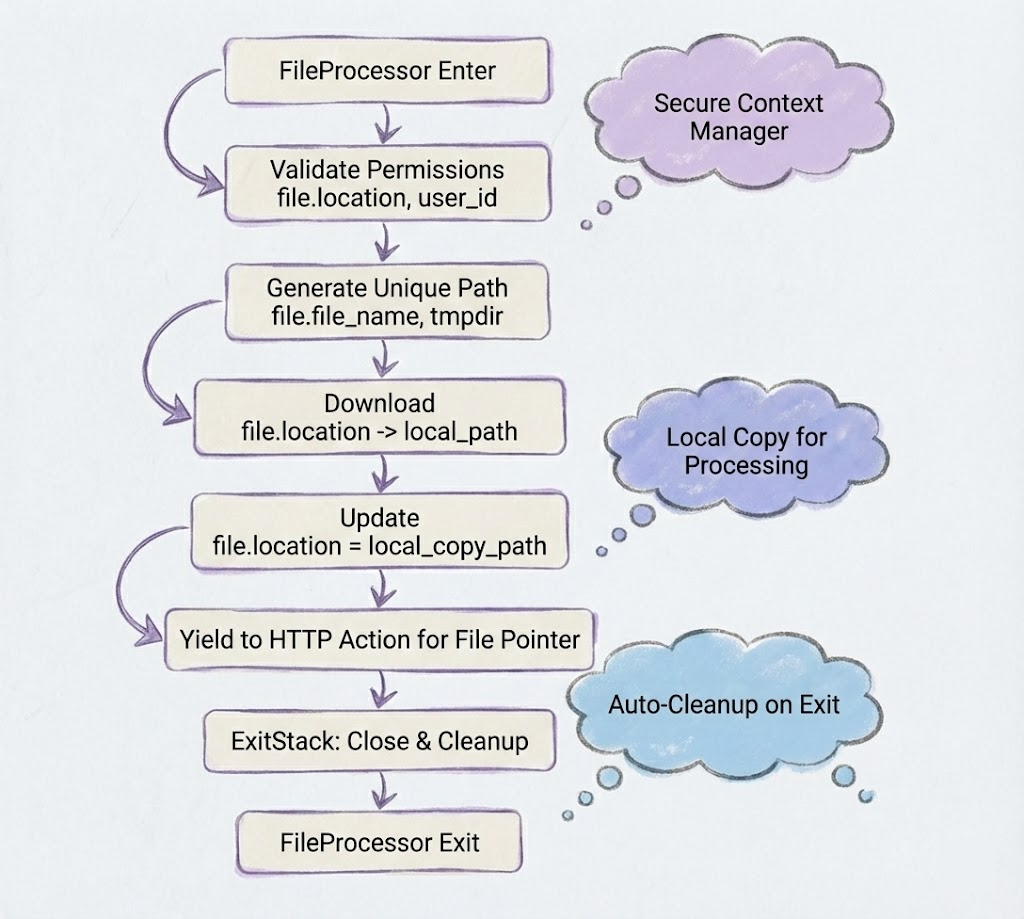
Why download it locally? Because we need to open a file pointer, a reference to the file on disk, rather than loading the entire file into memory. This matters when you are dealing large files or concurrent uploads. The file pointer streams the data to your API without bloating the server.
When the HTTP action executes, it opens that local file and sends it using Python’s requests library with multipart encoding:
file_pointers = file_process.open(file, 'rb')

request.post(

        url='https://api.example.com/expenses',

        files=file_pointers, data=body

    }
After the request completes, the file pointer is closed, and the temporary file is deleted. An implemented ExitStack ensures this happens even if something fails mid-request.
Slots vs. Others' Hops
In the AI world, most platforms don’t handle file uploads to external APIs well. OpenAI’s Files API is built for internal retrieval, like RAG or chat context. You upload a file (e.g., an expense report) and receive an ID. But forward that ID to your system? Nothing. You’re stuck fetching the file’s base64 content from OpenAI’s store, then re-uploading it to the target. Two hops. Two failure points. Not seamless, it’s easier to upload directly in your system.
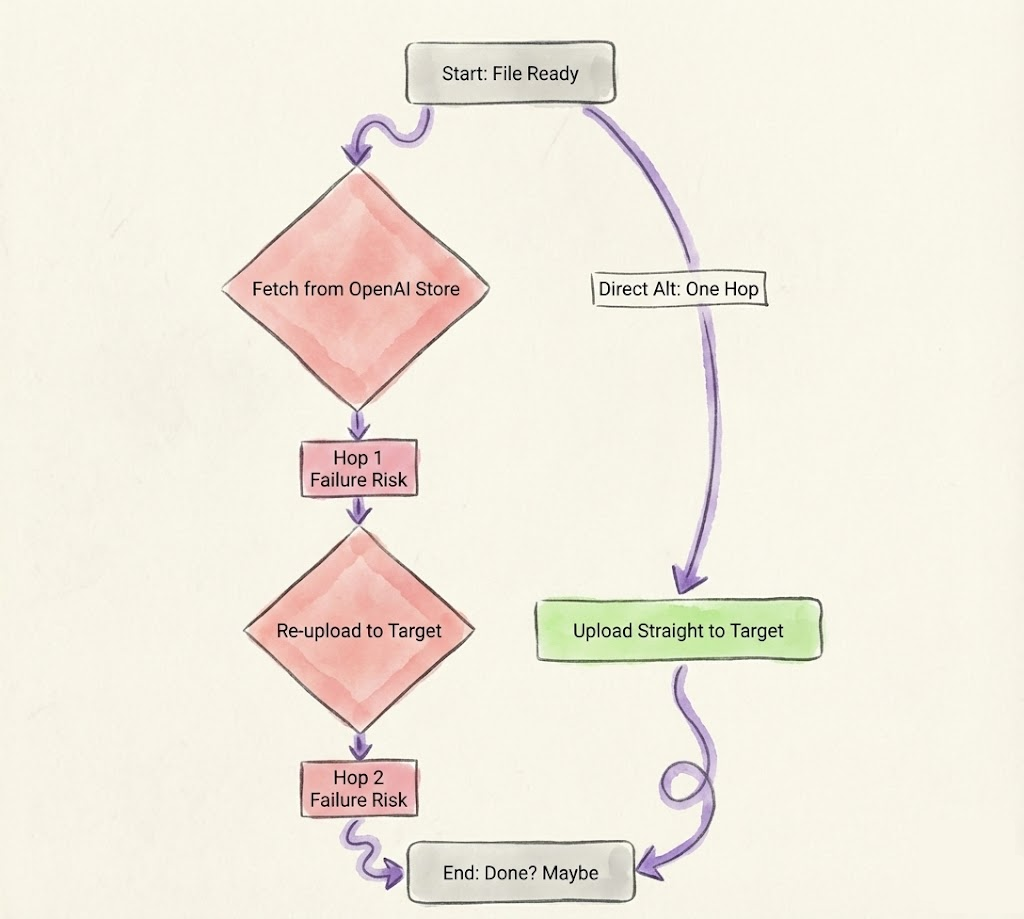
# Upload to OpenAI for internal use

file = client.files.create(

        file=open("expenses.pdf", "rb"),

        purpose="assistants"

)

file_id = file.id # To "forward" externally? Base64-encode and cram into JSON (not ideal)

with open("expenses.pdf", "rb") as f:

        base64_file = base64.b64encode(f.read()).decode('utf-8')    expensify_payload = {

        "authToken": token,

        "action": "upload",

        "fileData": base64_file # Bloats ~33% for binaries

    }

expensify_response = requests.post("https://api.expensify.com/api", json=expensify_payload)
You are forced to build a custom tool in your agent, and even a single hiccup can cause your agent to parse nothing.
Gemini skips file handling entirely. No built-ins; you prompt the user to drop it in your blob storage system, confirm via poll or webhook, then forward a pre-signed URL to the external API. Stateless. No lock-in. But you're suddenly wrangling storage: auth, multipart quirks, forcing the external API to download the file, and even basic malware scans on uploads.
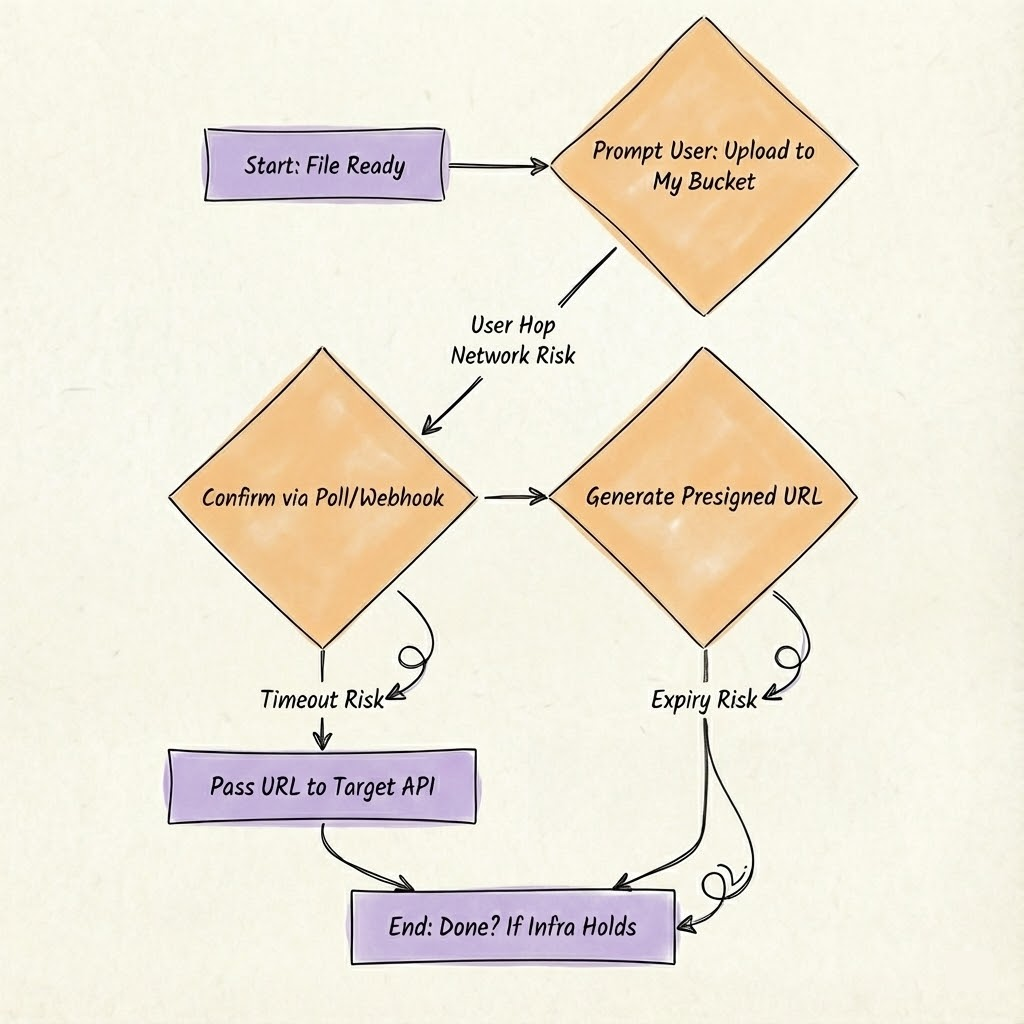
# Prompt via Gemini

response = model.generate_content(

        "Upload your expense PDF here: " + generate_presigned_url(bucket, "expenses.pdf")

    ) # Confirm arrival (poll example)

def wait_for_upload(bucket, key):

    for _ in range(30): # 30s timeout

        try:

            s3.head_object(Bucket=bucket, Key=key)

            return s3.generate_presigned_url('get_object', Params={'Bucket': bucket, 'Key': key}, ExpiresIn=3600)

        except ClientError:

            time.sleep(1)

        raise TimeoutError("Upload stalled")

url = wait_for_upload("my-bucket", "expenses.pdf")

# Pass URL to Expensify

expensify_response = requests.post(

"https://api.expensify.com/api",

data={"authToken": token, "action": "upload", "fileURL": url}

)
This works if the receiving server handles file downloads. But a spotty connection can silently cause this tool to fail.
File Slots sidesteps it all. Map the slot in your config, wire the body, and the platform streams the upload straight to the external API. No infra. No loops. Just bytes where they need to be.
Why This Matters
Think about what you can build: expense reports with receipts attached. Support tickets with customer documentation. Onboarding forms submitted to Workday. Leave-of-absence requests with supporting documents. All without context switching, all without manual uploads.
Behind the scenes, the pipeline orchestrates several things you don’t have to think about:
- Permission validation → Only you can upload your own files
- Temporary storage → Files don’t sit around forever
- Memory efficiency → Large files don’t blow up on your server
- Multipart encoding → The system handles boundary markers, content-type headers, etc
- Resource cleanup → File pointers close, temp files delete, no leaks
From your perspective: upload and done! From the system’s perspective: validate, download, reference, send, cleanup.
Still Rough Around the Edges (Cooking in the Lab)
The BriefMe Problem
We have another plugin called BriefMe that automatically triggers when files are hit the chat. When we first built File Slots, letting users attach files directly seemed obvious. But that would fire BriefMe every time, breaking the workflow.
So we added a dedicated upload button instead. An extra click. An extra moment of friction. Not ideal, however, the attachment policy is woven into how the Assistant handles attachments globally. Untangling it risked breaking other workflows we couldn’t afford to touch. File Slots are early, and we still have room to improve this.
One File Per Slot, No Overwriting
Right now, you can only upload one file per File Slot. And once it’s uploaded, the user can’t replace it — they’d have to start over.
This is a limitation we built in, not something forced on us. We could support multiple files, we just haven’t yet.
Logging Multipart Requests
When you look at HTTP logs for file uploads, you won’t see a request body, it is redacted.
Why? Multipart bodies are binary, not UTF-8 encoded. When we tried to log them, we got garbage in hexadecimal.
The Value in the Details
File Slots abstracts away the file-handling intricacies, such as permissions validation, temporary storage, memory-efficient streaming, multipart encoding, and resource cleanup, so you can focus on the workflow logic that drives real value. For expenses, leave requests, or document submissions, it's the difference between a seamless agent experience and yet another manual step.
If you're tackling attachments in your own builds, start with the config above. It sidesteps the three-month rabbit hole of custom multipart hacks we once chased.
Interested in learning more about File Slots or have an interesting use case? Connect with the Moveworks team through our Community.